Amazon Settlements
Overview
In this guide, we will explain how you can bring Amazon Settlements into Expandly and then send these fees across to your Xero account.
Setting up for Amazon Settlements to be brought into Expandly
1. Click Settings (left menu) and then click Sales Channels:
2. On your Sales Channels page, find the Amazon account you wish to bring the Settlements in for, and then within the Edit column click the  icon
icon
3. On the Edit Amazon page, switch the Auto Import Settlement Report 'On':
4. Once done, click  to update the changes.
Mapping Settlements
1. Click Settings (left menu) and then click Xero:
2. On you Configure Xero page, click the  tab:
tab:
3. Within the Settlements section, map all fields and once this has been done, click  :
:
Sending Settlements to Xero
1. Click Finance (left menu) and then click Settlements:
2. On your Manage Settlements page, you will see any settlements which have imported from Amazon. Alongside the settlement, you will be able to see details such as the Settlement ID, Source, Settlement Start and End Date and Total Amount:
3. If you need to bring in any historical settlements from Amazon, you are able to do this by clicking the 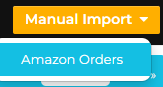 button at the top right of the page. On the Set Filter pop-up you can then determine what Account and Date Range you wish to manually import.
4. Once all Settlement data is in Expandly, that you wish to send across to Xero, you can simply select by ticking the settlement (s) and then click  (top right)
5. Once the Settlement(s) have been successfully sent to Xero, you will see the  icon within the Xero column. If you hover on this, you will be able to see the Invoice Number and if you click on the icon, this will take you to the invoice within Xero.
Need more help?
If you need more help, no problem. Contact Us and we'll be happy to help.
Related Articles
Amazon Removals
Overview From time to time, you may wish to remove stock from Amazon warehouses to save fees/costs. In these instances you will need to create an Amazon Removal Order. In this guide, we will explain what happens when these goods are received back ...Amazon Transparency Labels
Overview Amazon Transparency is a product-serialization and anti-counterfeit program. The term “Transparency labels” refers to the unique, scannable codes that brands apply to their products so Amazon can verify authenticity before shipping. What is ...Listing to Amazon
Listing to Amazon Overview In this guide, we will explain how to list to Amazon, using Expandly. Before you start Before listing products to Amazon, you must have: Added your Amazon account to Expandly Obtained ASINS for your products Created or ...Refreshing your Amazon Token
Refreshing your Amazon Token When you add an Amazon account to Expandly, there may be occasions when you will be required to refresh the token, to allow Expandly to continuing accessing the account and its data. Refreshing your Amazon Token 1. Select ...Adding a sales channel - Amazon
Adding a sales channel - Amazon Overview In this guide, we will show you how to connect your Amazon account to Expandly, which will allow you to manage your Amazon products & variations, listings, sales orders and stock levels. Adding Amazon to ...