DE VAT - Seller Central Screenshots
Overview
In this guide, we will explain how you can obtain your Amazon Seller Central screenshots, that will need to be provided when submitting your DE VAT application.
Obtaining DE VAT Seller Central Screenshots
1. Log in to your Amazon Seller Central Account - https://sellercentral.amazon.co.uk;
2. Click on your Company Name:
3. From the drop-down, select 'Germany':
4. Take a screenshot of your Amazon Germany page:
5. Click Menu> Inventory> Manage All Inventory:
6. Click FBA Inventory:
7. Take a screenshot of your FBA Inventory page:
8. Click on Settings and from the drop-down, select Fulfilment by Amazon:
9. Take a screenshot of your Fulfillment by Amazon Settings page:
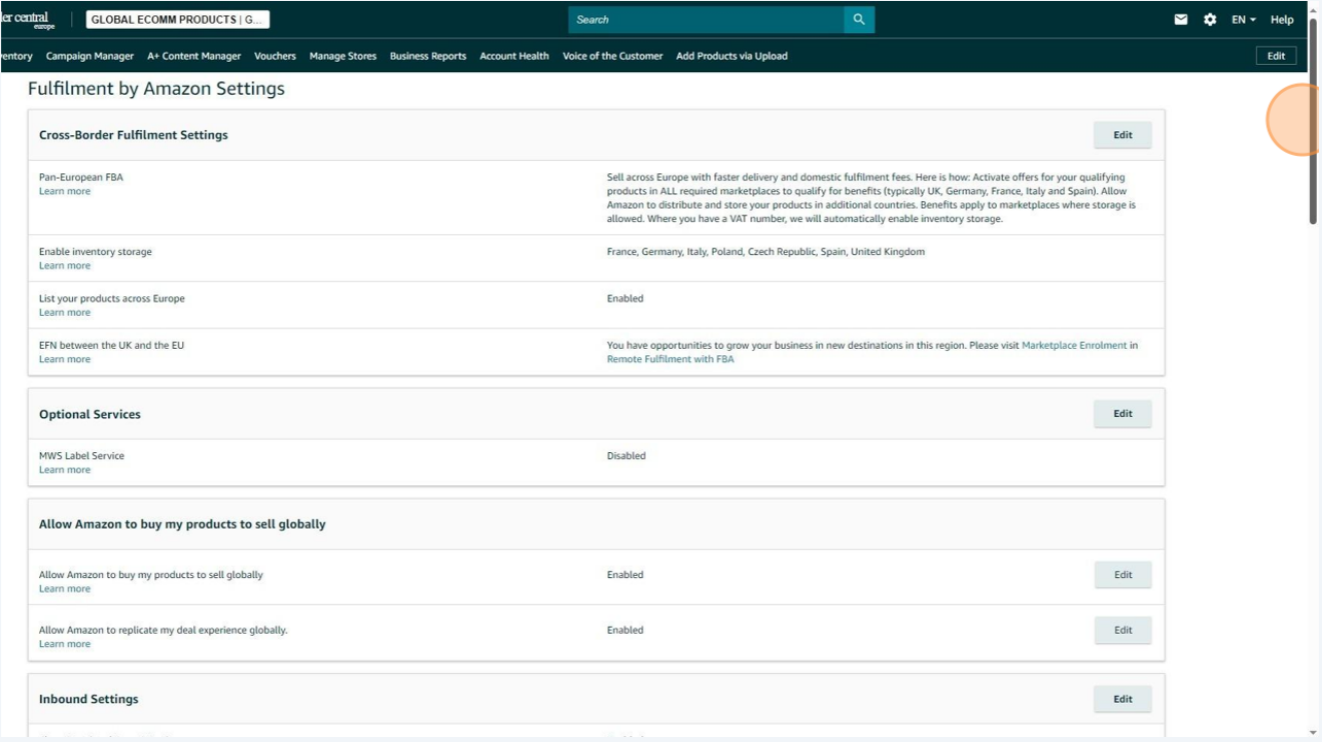
10. Click on Settings and from the drop-down, select Account Info:
11. Ensure that your DE Store is showing as Active, and take a screenshot of this page:
To Summarise:
In total we require 4x screenshots from your Amazon Seller Central account:
1- Screenshot of your Amazon>Germany page
2 - Screenshot of your FBA Inventory page
3 - Screenshot of your Amazon Fulfillment by Amazon Settings page
4 - Screenshot of your DE Store, showing as Active
Need more help?
If you need support, no problem! Contact Us and we'll be happy to help.
Related Articles
VAT - Why do I need to provide region-specific Amazon Seller Central Screenshots, when applying for VAT?
Overview In this guide, we will explain the importance of providing Amazon Seller Central Screenshots, for each different region that you are attempting to obtain VAT Numbers in. Why do I need to provide region-specific Amazon Seller Central ...VAT - Why do I need to provide region-specific Amazon Seller Central Screenshots, when applying for VAT?
Overview In this guide, we will explain the importance of providing Amazon Seller Central Screenshots, for each different region that you are attempting to obtain VAT Numbers in. Why do I need to provide region-specific Amazon Seller Central ...VAT - DE Documents
Overview In this guide, we will explain what documentation needs to be submitted alongside any DE VAT registrations. Important Note All documentation provided alongside your DE VAT application, must be signed by the director matching the signature ...SE VAT - Seller Central Screenshots
Overview In this guide, we will explain how you can obtain your Amazon Seller Central screenshots, that will need to be provided when submitting your SE VAT application. Obtaining SE VAT Seller Central Screenshots 1. Log in to your Amazon Seller ...Adding Expandly as an Authorised Partner on Amazon Seller Central
Overview In this guide, we will explain how you can add Expandly as an Authorised Partner on your Amazon Seller Central Account. Since Expandly is an Amazon SPN member, you will be adding us an Authorised Partner NOT a Secondary User. Authorised ...