EPR - Setting up a LUCID account
Overview
For EPR - DE Packaging Category, a LUCID Account will need to be set up. In this guide, we will explain how you can set up this account and register.
Creating your LUCID Account
1. Visit the LUCID website to create your log in:
Click here to visit the website
2. Add your Company Details, as highlighted in the example below:
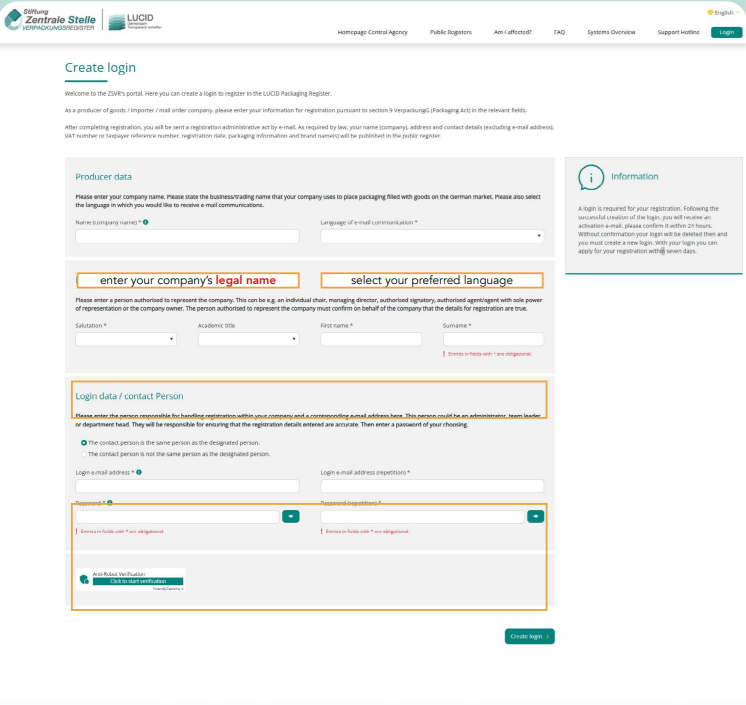
3. Once completed, click Create Login, which is located at the bottom RH corner of the page
4. Once your account is created, you will receive an Account Activation Email - this will be received from Zentrale Stelle Verpackungsregister (no-reply@email.verpackungsregister.org):
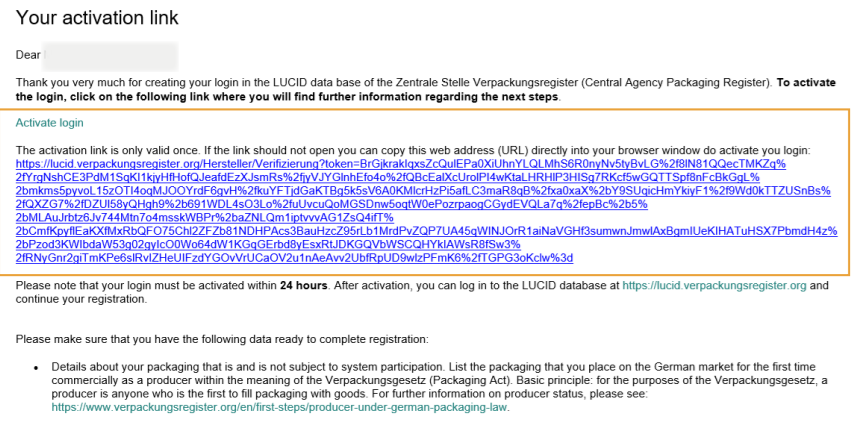
Please Note: your account activation link will expire 24-hours after it is sent so it is important to action the activation as quickly as possible
Your First Log In
1. Log in to your LUCID account, using the details that you created in the first step:
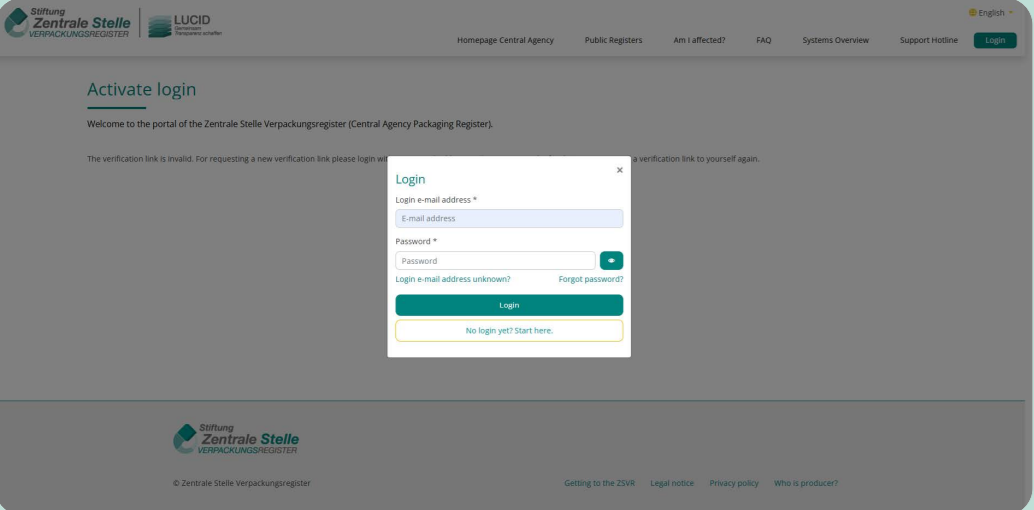
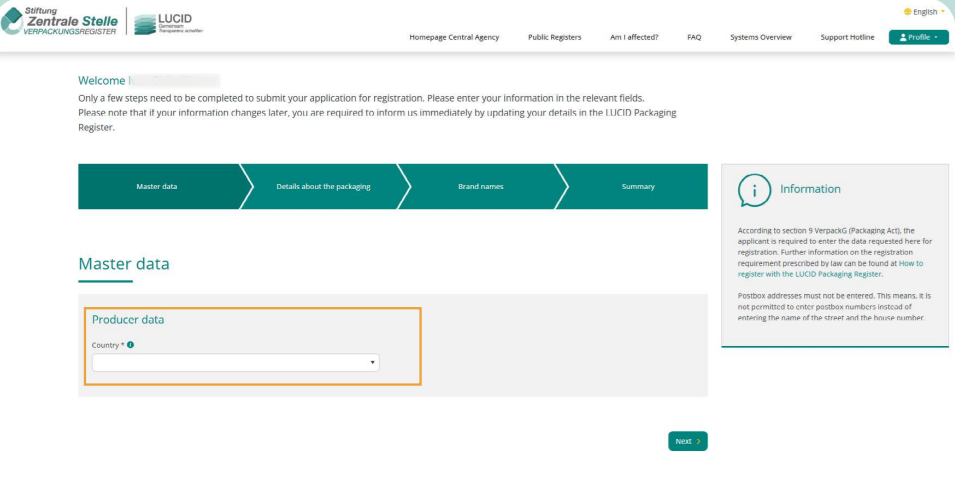
2. Once you have completed login, please enter the following data:
Please note:
- You should enter the registered company information for your business
- Please ensure that the data entered matches the information in your Amazon Seller Central account, or on your website
- Incorrect company information could invalidate your LUCID account
3. Please enter the VAT number associated with your country of incorporation
For example, if your company is registered in the United Kingdom, you should enter your GB VAT number
If your company is not listed and is based outside of the European Union, please select “Other” from the Type of national identification number field
You should then enter your company registration number. For example, for a company registered in the US, you should enter your EIN number here
4. Please complete all fields as directed below:
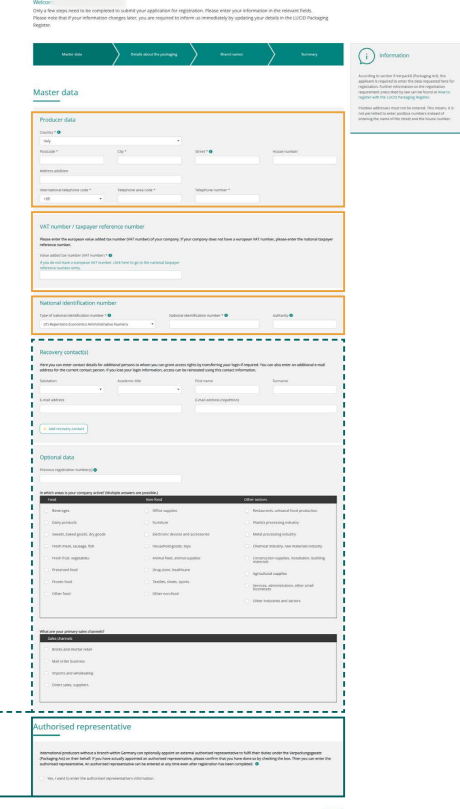
Please Note: the Authorised Representative section is not mandatory - you can read more about this below:
5. Finally, after carefully reading, please confirm that you agree to both ‘Statements’ before clicking next, and proceeding to the next step
Selecting your options
1. Within the ‘Packaging subject to system participation’ option, please always select the first option for:
'Retail, grouped and shipment packaging that typically accumulates as waste with private final consumers'
2. Please also select the option for Transport Packaging, as indicated below:
Adding your Brand Names
1. In order to complete your registration, you are required to add the details of all your brand names
2. Simply click ‘Add brand name’ and complete the details as required
Please Note:
- Please ensure that the names entered exactly match those used on your online marketplace store (for example: on your Amazon store, or your Shopify store)
- Carefully read each of the ‘Statements’, before agreeing to them
- Please tick both the "Packaging subject to system participation” and “Packaging not subject to system participation” options to proceed
3. Once you are happy all of the information has been entered correctly, click Submit
Final Set-Up
1. You have now successfully sent your LUCID Registration application to the authorities
2. Please click on “Yes” as indicated (below) - confirming that you have already concluded a system participation agreement with a dual system:
Submitting your Data Report
1. Now that you have completed the setup and have submitted your LUCID Registration, you need to submit your ‘Data Report’
2. From the LUCID dashboard, click on the ‘Profile’ icon
3. Select “Dashboard” from the drop-down menu
4. From the dashboard, under ‘Data Report’, please click “Submit data report”, to start this process:
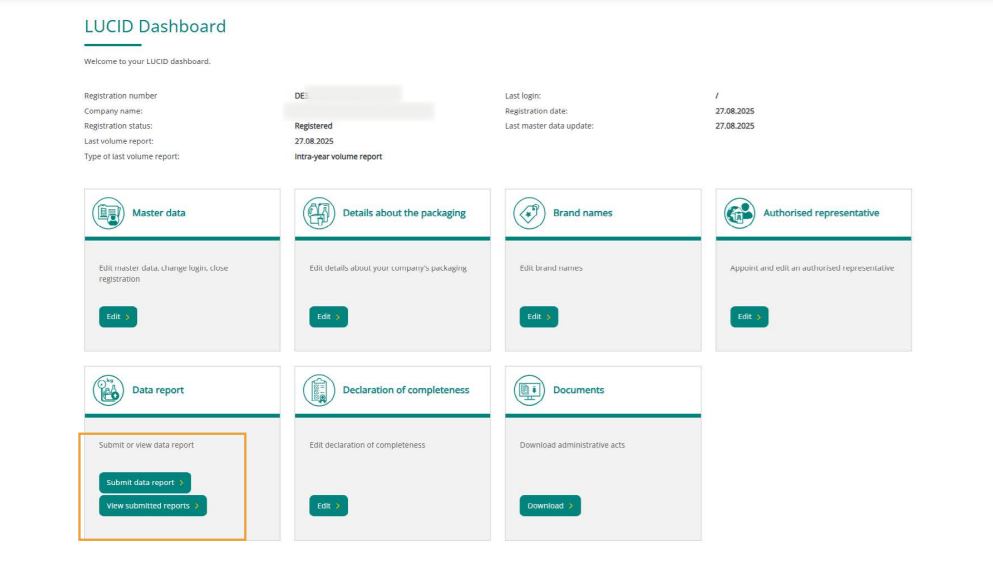
Producer Data Report
1. From the Producer data report page, under the ‘Intra-year volume report’ section, please select “Start”
Please Note: It is extremely important to ensure that the following steps are completed accurately
2. From the “Enter data report” page, please indicate the reporting period
3. Please enter the date range from January to December of the current year. e.g. 01.2025 to 12.2025
4. Under “Volumes of material types”, please fully complete this section using estimated volumes where applicable (Please Note: 0 volumes will not be accepted by the authorities - when completing this this please ensure at least 1g is added to satisfy the Authorities needs.)
5. Under “System operator”, please select “DSD” from the drop-down list
6. Using the packaging categories listed, please now declare your forecast packaging volumes in kilograms (kg), see example below:
7. Please click ‘Submit’ once you have completed this form
*IMPORTANT* Once your declarations have been submitted, please share a screenshot of what has been submitted to our On-Boarding Team. This information can then be shared with our authority contacts, in addition to the information being added to the portal.
Registration Completed
1. Congratulations! You have successfully completed the first part of your German EPR packaging registration
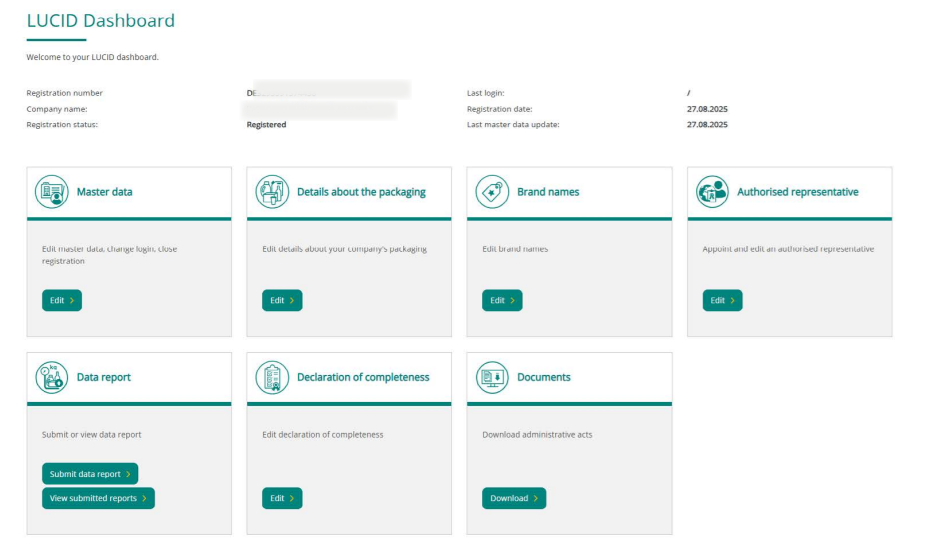
2. From the LUCID Dashboard, you will now see the following:
Registration Number Issued
1. Once you reach this stage and your registration number has been confirmed, you should share this with the Expandly On-Boarding Team as soon as possible
2. This is necessary for Expandly to request the invoice from the German tax authority on your behalf
3. To view your German EPR packaging registration number, please navigate to the LUCID Dashboard, where it will be clearly displayed
Need more help?
If you need more help or support, no problem! Contact Us and we'll be happy to help!