Managing Listing Translations
Overview
In this guide we will show you how to manage your listing translations within Expandly.
Creating a Translation
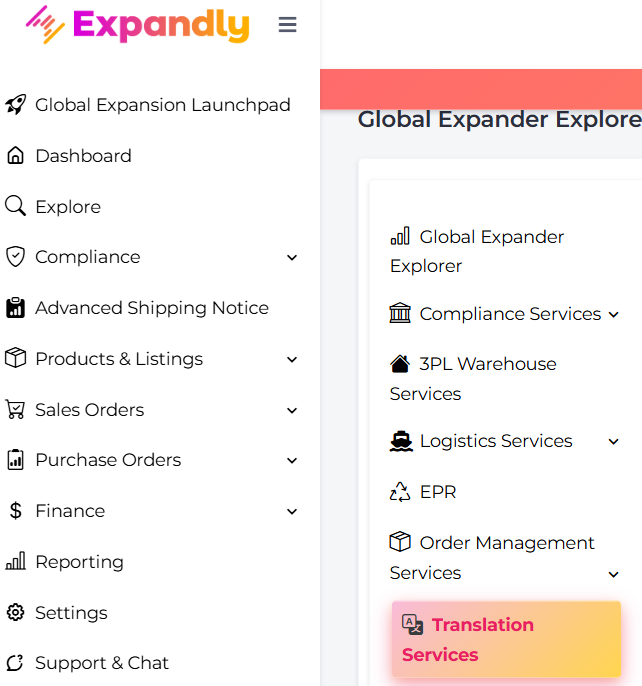
1. Click Explore and then select Translation Service:
2. On your Manage Translation page, click  (top right)
3. Select the Product(s) you wish to send off for translation by ticking the tick box (you can use the available filters to make it easier to find the SKUs you want to translate!) and then click  (top right):
4. On the Send Products for Translation pop-up, select the fields to translate (Title, Description or Bullet Points - you can select multiple at once) and also the Country(ies) you wish to translate to:
5. Once you are happy with your selections, click  which will begin the translation process for you
6. On your Manage Translation page, you will be able to view any translations you have initiated with a summary of the SKU, Title, Date of Request and Languages. You will also be able to view the status too:
7. Once the 'Status' is 'Completed' you can view the translation by clicking 
8. On the Translated Data pop up, you can view a break down of the translations which have been completed:
From here, you can chose to either:
- Copy the data manually by clicking the  icon
icon
- Save the information directly to the product in Expandly by selecting 
9. If you choose to save the translation data to the products, on the Save Translation pop up, you can select which channel(s) account(s) you wish for the information to be saved to:
10. Once done, click 
Need more help?
If you would like to learn more about our translations offering, please get in touch and the Team will be happy to help!