Creating manual sales orders in Expandly (3PL)
Overview
This guide explains how to manually create sales orders in your Expandly portal.
In situations where orders are not automatically imported into Expandly through a connected sales channel, you will need to create them manually. Once submitted, these orders will be synced to the Warehouse Team to be picked, packed, and dispatched in accordance with your SLA.
Creating manual orders in Expandly
1. Log in to your Expandly account
2. Click Sales Orders (left menu)>Manage Sales Orders
3. On your Manage Sales Orders page, click  and then select 'Manual Order' from the drop-down:
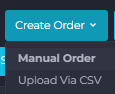
Please Note: if you have multiple orders to create, if you select 'Upload Via CSV' option, this will allow you to upload orders in bulk via a CSV file
4. On your Create Order page, complete the following:
Order Number - add the order number as required - this should be unique and an order identifier should you need to revisit the order at a later date:
Order Date - this will be auto populated with the current days date however can be backdated if needed
Order Source - it is really important to select the correct Warehouse from the drop-down, to ensure that the order is sent to the relevant Team to fulfil
Order Type - this will be auto populated as a Sales Order however can be changed on the drop-down, if required. By selecting the correct Order Type, will allow us to be aware of the requirements at the point of the order creation and advise on the next steps:
Product(s) - within the Product section, you can add what products make up the order. Simply type the product name or SKU in the 'Search Product' field and results will be returned - click on the product to add this to the order:
Once added, you can then add Price detail (if not pulled from the product) and quantity that needs to be shipped:
Repeat this process for all the Product/SKUs that need to be included within the order number
Shipping Method - this is the courier that you wish to use to ship the order:
Please Note: the courier added, must be an exact match to ensure correct mapping and assignment. You can see a list of couriers that are available to use by clicking here
Customer Details- enter the customer Name and Address, where the order needs to be sent to. Please Note: It is possible to save and store customer details (name, address, contact) in Expandly, via your Customers page, which will ensure frequently used contacts are easily available to add to your manual orders. Get in touch if you need any assistance with this
Documents - If there are any supporting Order Documents - Shipping Labels, Commercial Invoices, Packing Lists, for example, these can be added. Simply click  to add these to the order
5. Once you have added all Order Details, click  (top right) to save the order and send this to the Warehouse for fulfilment
Viewing Orders in Expandly
1. Log in to your Expandly account
2. Click Sales Orders (left menu)>Manage Sales Orders
3. Here, you will be able to view your Sales Orders:
4. On this page you can view:
Order Source
Order Number
Customer Details
Product Details
Quantity(ies)
Shipping Method
Order Status
5. If you need to view additional order details, click 'Actions' and from the drop-down, select 'View Details':
6. You can also use the search bar, or filters, on your Manage Sales Orders page, to refine you order results and easily find the order numbers you require:
Editing orders in Expandly
1. There will be limited areas of the orders that you can edit. This is to prevent any miscommunications in details that are passed over to the warehouse when the order is initially created, as they will prepare and fulfil the order according to these specifications.
If you need to make any changes to the order please create a ticket with the Team, and we will be happy to support, where possible
2. The only exception is the ability to add documents to an order after this has been created. This will be important in instances where you need to upload labels or additional shipping documentation that may not be available at the time of creation. To to this click  and then
On your Edit Order page, click  and add the documents. Once done, click (top right)
Need more help?
If you need more help, no problem! Contact Us and we'll be happy to help.