Uploading documents to products for RP in Expandly
Overview
For RP, there will be a range of documentation that we need to collate from you (dependant on category), in order to review and provide RP approval. In this guide, we will explain how you can upload the relevant documentation to your products.
1. Log in to your Expandly account
2. Visit your Compliance>Responsible Person page:
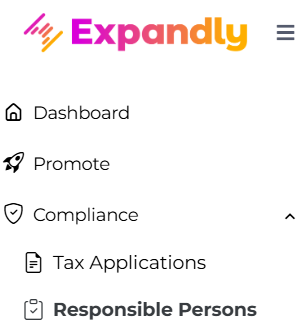
Please Note: This option will only be available if you have an active RP service with us here at Expandly, if you do not see this option, please Contact Us for support.
3. On your Responsible Person page, click  (top right):
4. On the Responsible Person - Add Products pop up, select the products you wish to be reviewed for RP:
You can select the products by using the tick box to the left and can search for SKUs by using the Search field. Once you have found and selected the products, you can then select the applicable Service & Category from the drop-down and once done, click  :
:
5. Once the product(s) have been added to your Responsible Person page, you can click the  icon to view all the different documentation we will require, based on the Category:
Please Note:
- In order to upload the document, the Name of the file must match the expected name of the document exactly - For Example, if uploading 3rd Party Manufacturing Accreditations, this should be called 3rd Party Manufacturing Accreditations
- All Documents will need to be uploaded to allow us to proceed with the RP review. All mandatory documents to provide, based on the category of your products, will need to be uploaded in order for this to progress to the Compliance Check for RP Approval
6. To upload documents, click  . You can then choose a file, or drag a file and once added, click
Please Note: If you upload the incorrect document, no worries - Simply click
7. Once all required documentation has been uploaded to the product, this will then be passed over to our Compliance Team to review. You will be able to view the current status of the application via the Status column which will highlight whether we are Awaiting Documents, the application is Under Review, whether the application Needs more work (we will provide comments to you via your portal on what is needed here), Approved or Not Approved:
Uploading documents in bulk to multiple different SKUs
1. Visit your Responsible Persons page via your Navigation Pane
2. On your Responsible Persons page, click 
3. On your Bulk Upload Documents pop up
- From the Documents drop-down, select the type of document you wish to upload:
- Select the product SKU(s) that the document applies to
- Within the Upload File section, either drag and drop the applicable file or click
to select from your files
Please Note: In order to upload the document, the Name of the file must match the expected name of the document exactly - For Example, if uploading 3rd Party Manufacturing Accreditations, this should be called 3rd Party Manufacturing Accreditations
4. Once done, click  to upload the documents to the selected SKUs
Please Note: If you make a mistake, no worries - Simply click  to remove the file so you can reupload the correct one
Need more help?
If you need more help, no problem. Contact Us and we'll be happy to help!
Related Articles
Uploading Products Label Reviews in Expandly
Overview As part of our initial compliance checks, our Compliance Team will need to review your current product labels. Following this review, we will issue a report outlining any changes that may be required to ensure your product labels are ...Next Steps for Compliance & 3PL Onboarding (Expandly Services)
Overview Thank you for moving forward with Expandly’s Compliance and 3PL onboarding services - we're delighted to support you on this exciting step in your expansion journey! This guide outlines the next steps, documentation requirements, and ...Uploading Documents for your VAT Application via Expandly
Overview This guide explains how you can upload all necessary documentation, required alongside your VAT application(s), via your Expandly portal. Why do I need a VAT Number in different countries? You need a VAT number in different countries mainly ...Adding Products to your Expandly Portal
Overview In this guide, we will explain how to add manual products to your Expandly account. Manual product uploads may be required at various stages of your expansion journey — from initial label checks and Responsible Person (RP) documentation ...Uploading products in bulk to your Expandly portal
Overview If this guide, we will show you how to upload products to your Expandly portal in bulk, via a CSV upload. Adding Produc ts to Expandly in bulk 1. Log into your Expandly portal 2. Go to Products & Listings > Products: 3. On your Products ...